Integration
ClickUp Lead Sync
Turns leads and orders from your MonoChat conversations into ClickUp tasks, and brings what your team changes in ClickUp back to MonoChat: a message to the customer, a note, a tag, an event for your flows, profile fields and comments.
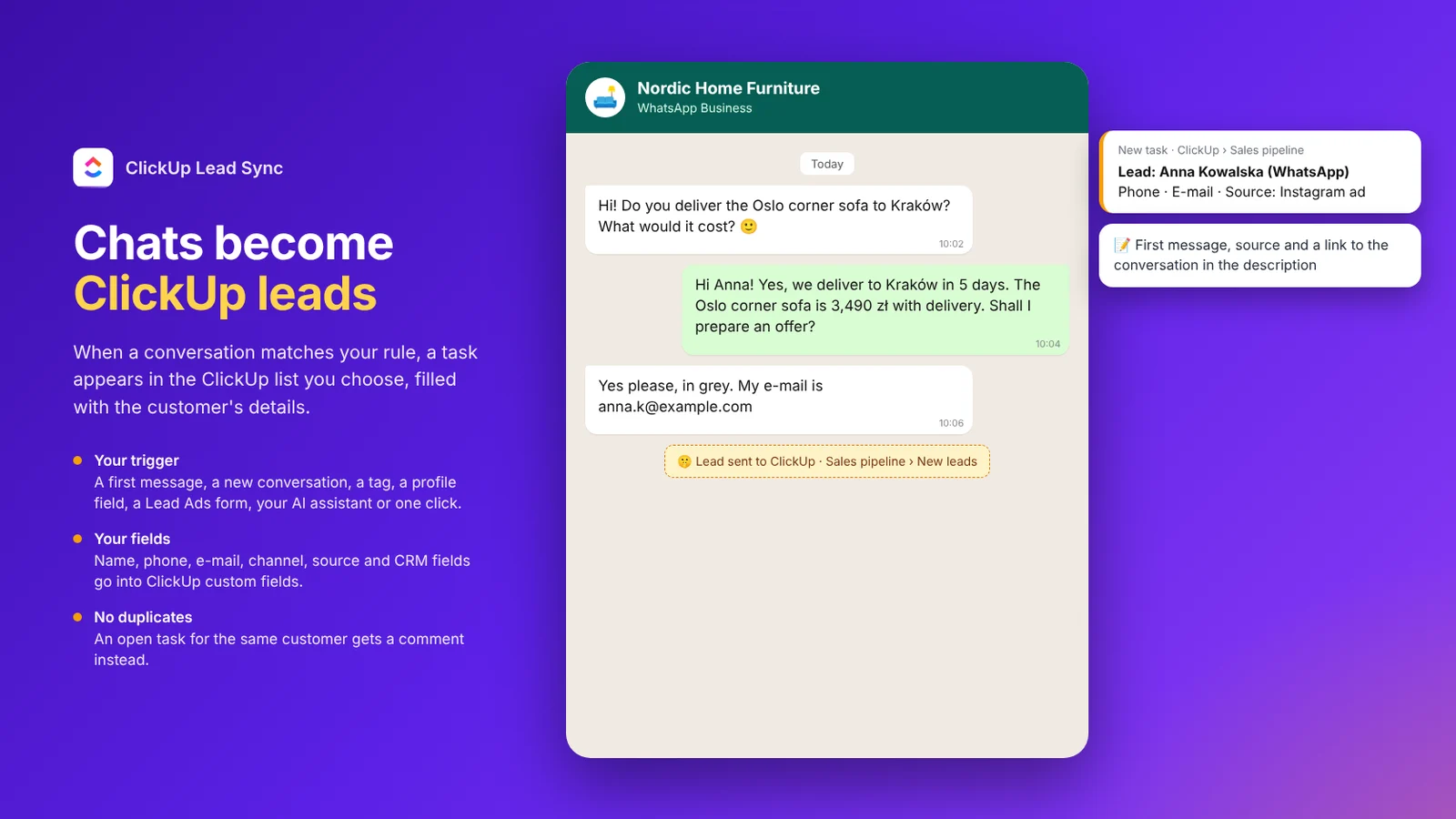
ClickUp Lead Sync connects your MonoChat conversations to your ClickUp. Leads and orders from your chats become ClickUp tasks, filled the way your team works.
What your team changes in ClickUp comes back to MonoChat: a message to the customer, a note for the team, a tag, or an event for your own flows.
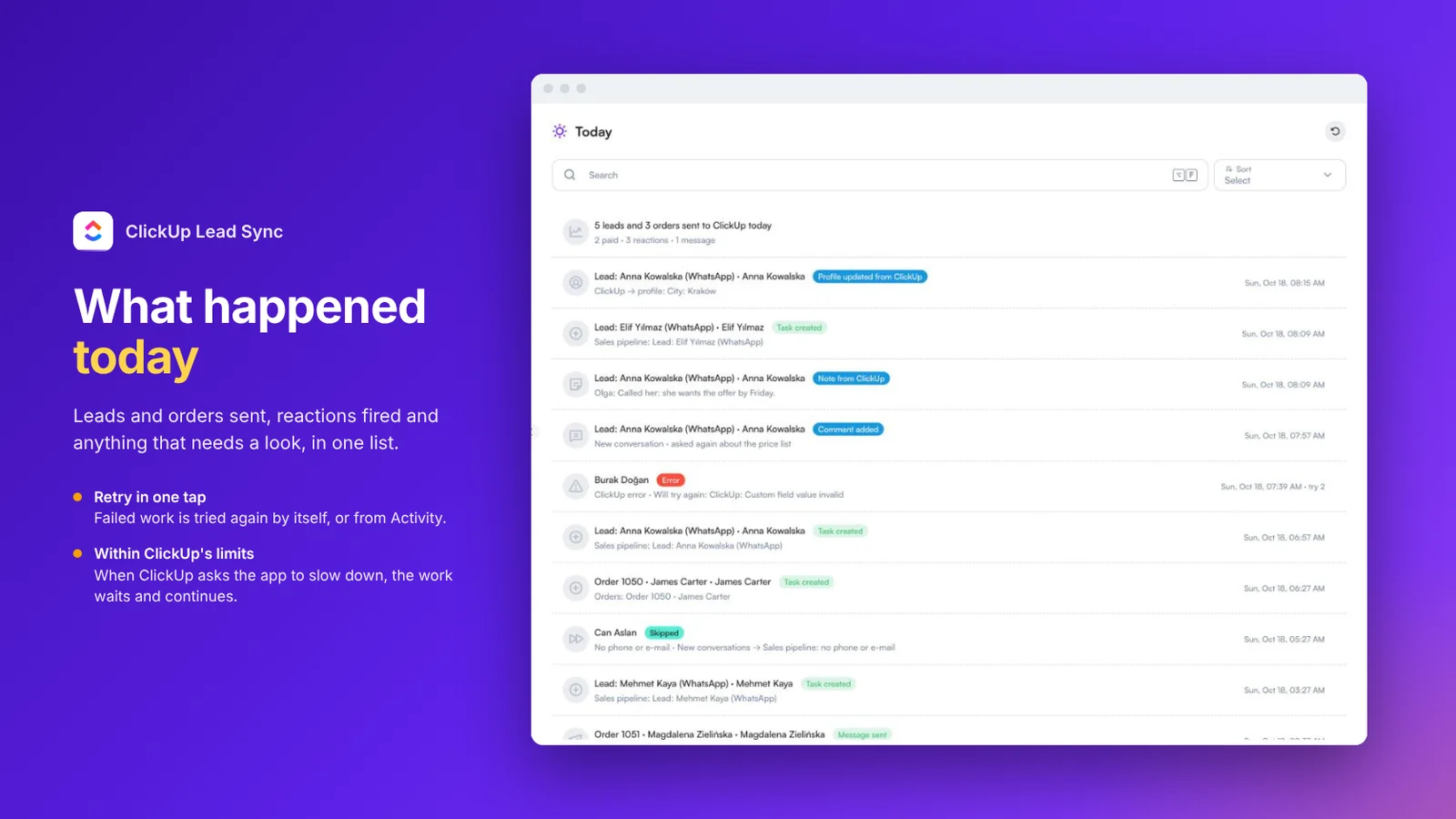
A ClickUp card beside every conversation shows the customer’s tasks, and the Today screen shows what was sent, what fired and anything that needs a look.
In the UAE
For teams that already track leads in ClickUp.
What it does
-
Chats become ClickUp leads
A new conversation, a new customer’s first message, a tag, a profile field, a Lead Ads form or your AI assistant creates a task in the list you choose. When the same customer already has an open task from the rule, the app adds a comment to it instead of a new task.
-
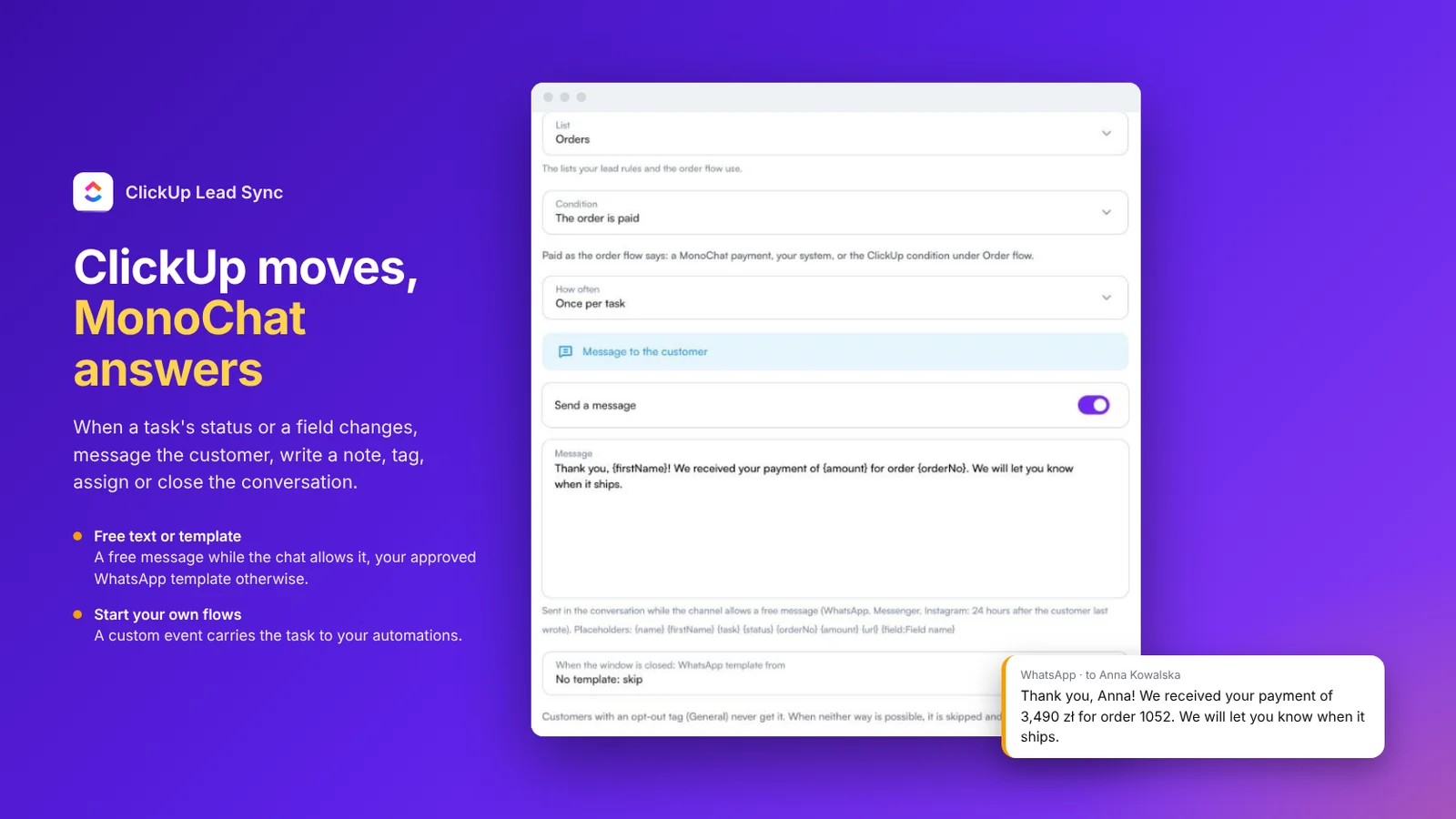
ClickUp moves, MonoChat answers
When a task’s status becomes the one you choose, a field condition is met or an order is paid, MonoChat can message the customer, write a note for the team, add or remove tags, assign or close the conversation, or start your own flows with a custom event.
-
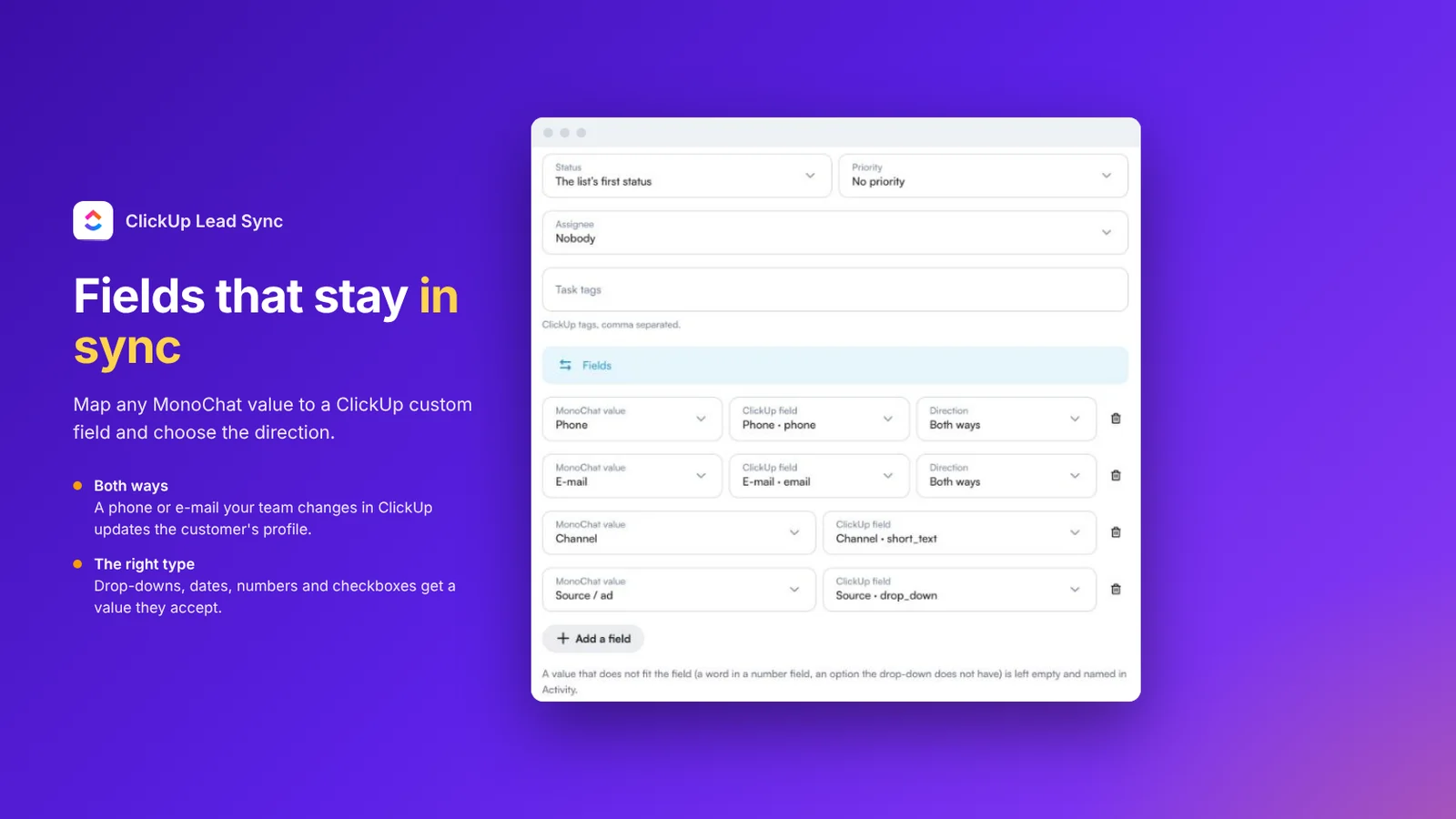
Fields and comments both ways
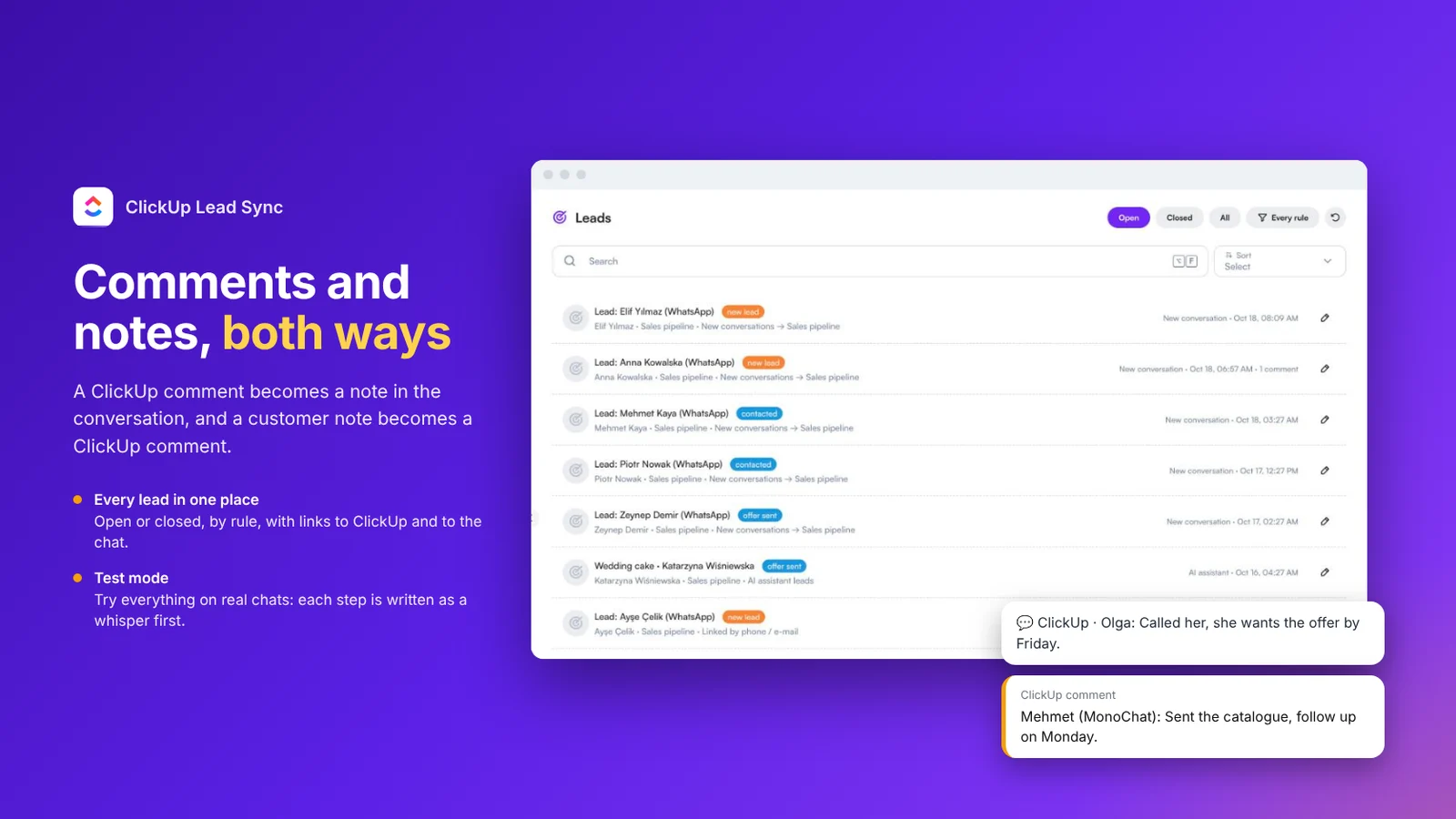
A mapped name, phone, e-mail or CRM profile field can be set to “Both ways”, so a change on either side updates the other. A new ClickUp comment becomes a note in the conversation, and a note your team adds to the customer becomes a comment on the open task.
Inside the app
-
Your fields, your way
Task name and description from templates, status, assignee (fixed, or the agent on the conversation), tags, priority, and any MonoChat value mapped to a ClickUp custom field. A value that does not fit a field is left empty and shown in the activity log.
-
Orders
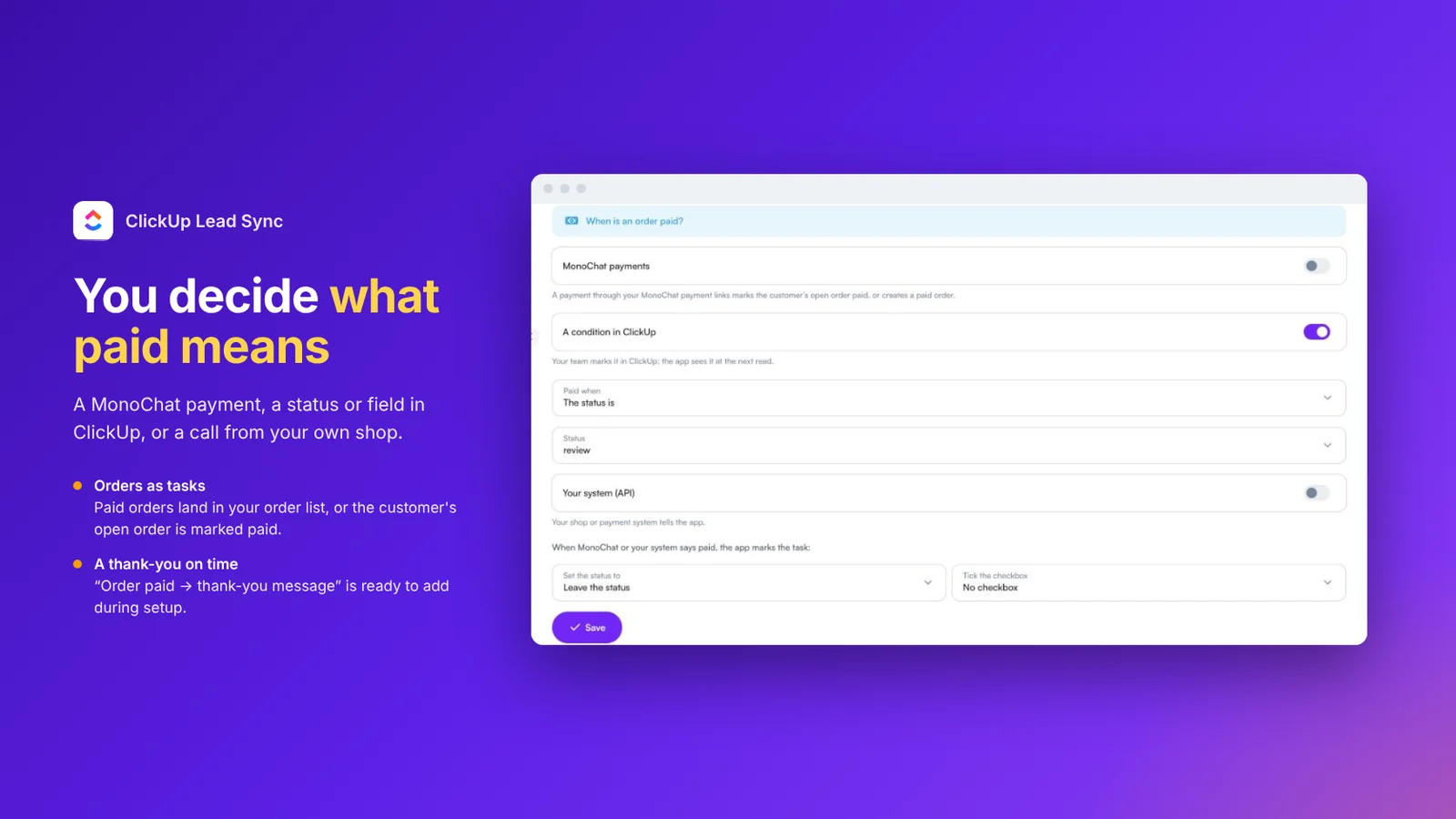
Paid orders become tasks in your order list, or the customer’s open order is marked paid. Paid is decided by a MonoChat payment, a status or field in ClickUp, or your own system through a simple API call. “Order paid → thank-you message” is ready to add during setup.
-
Messages to the customer
Free text while the conversation allows it, your approved WhatsApp template otherwise. Customers with an opt-out tag never get a message from the app.
-
Filters and control
Channels, ad or organic source, business hours and keywords decide which conversations become leads. A rule can wait a few minutes for a phone number or e-mail before it creates the task.
-
Beside every conversation
The ClickUp card shows the customer’s tasks, their status and the latest ClickUp comment, opens them in ClickUp, and lets the team send the conversation as a lead or create an order with one click.
-
Today and activity log
Leads and orders sent, reactions fired and any errors. The activity log keeps 90 days, and anything that failed can be retried. When ClickUp asks the app to slow down, the work waits and continues by itself.
Getting started
-
Install the app
Install ClickUp Lead Sync in your workspace. Sample data lets you see the screens before your first lead.
-
Connect ClickUp
Paste a ClickUp personal API token (ClickUp › Settings › Apps) and choose the list for your leads, and one for orders if you use them.
-
Set your rules and fields
Choose what creates a lead, map MonoChat values to ClickUp fields, and add the reactions you want when a task changes.
-
Try it in test mode
In test mode nothing is written to ClickUp and nothing goes to customers; every step is written as a whisper in the conversation. When it looks right, turn test mode off.
Good to know
- ClickUp cannot call MonoChat, so the app reads the changes of the lists it uses every 1, 5 or 15 minutes.
- On the ClickUp Free plan, custom fields can only be used a limited number of times. When the limit is reached, the app still creates the task, writes the field values into its description and tells you on the Today screen.
Screens
FAQ
Frequently asked questions
Short answers to the questions we hear most.
What do I need to connect ClickUp?
A ClickUp personal API token (ClickUp › Settings › Apps) and a list for your leads. Connecting with your ClickUp login (OAuth) instead of a token is planned.
Will it create duplicate tasks for the same customer?
No. When the same customer already has an open task from the rule, the app adds a comment to it instead of creating a new task.
How fast do ClickUp changes reach MonoChat?
The app reads the changes of the lists it uses every 1, 5 or 15 minutes, as you choose. Instant updates from ClickUp are planned.
Can it message the customer when an order is paid?
Yes. “Order paid → thank-you message” is ready to add during setup. The app sends free text while the conversation allows it and your approved WhatsApp template otherwise.
Does it work on the ClickUp Free plan?
Yes. On the Free plan custom fields can only be used a limited number of times; when the limit is reached, the app still creates the task, writes the field values into its description and tells you on the Today screen.
Can I try it without touching ClickUp or customers?
Yes. In test mode nothing is written to ClickUp and nothing goes to customers; every step is written as a whisper in the conversation, so you can try everything on real chats.
Other apps
-
Lead Ads Follow-up
Sends WhatsApp template messages to people who fill your Facebook and Instagram Lead Ads forms, at the delay you choose. -
Google Review Requests
Asks customers for a Google review after their visit, with your review link for each branch, fairly and with an easy way to stop. -
MonoChat Toolkit
Ready-made AI tools and flow nodes: menus, surveys, appointments, leads, coupons, branches, email, Google Sheets and more. -

MonoChat Start
Give it your website, and in two minutes an AI assistant answers your customers on WhatsApp, Instagram and your site. -
CompanyAI
An AI assistant built from your website: it learns your products, policies and FAQs, sends requests and complaints to the right department as tasks, and searches your Shopify store. -
MonoChat Tasks
Turn conversations into tasks: assign them, move them through your own states, discuss them in comments and set reminders, next to the chat. -
WhatsApp Template API
Send approved WhatsApp templates from your CRM, ERP or online shop with one API call; replies arrive in your MonoChat inbox. -
Session Link
One API call returns a link to a customer’s conversation in MonoChat, creating the customer and the conversation if needed, and can assign it to an agent or workgroup. -

Ads Referral Report
See which Meta ads and posts start conversations: every chat from a click-to-WhatsApp or Instagram ad, by ad, day and channel.
First month of Growth on us
Bring every customer conversation into one place.
Connect your first channel in minutes. Basic is free for 1,000 outgoing messages a month.
One code per business • 30 days to redeem • No card needed