Productivity
MonoChat Tasks
Turn conversations into tasks: assign them to your team, track their state, discuss them with comments and set reminders, right next to the chat.
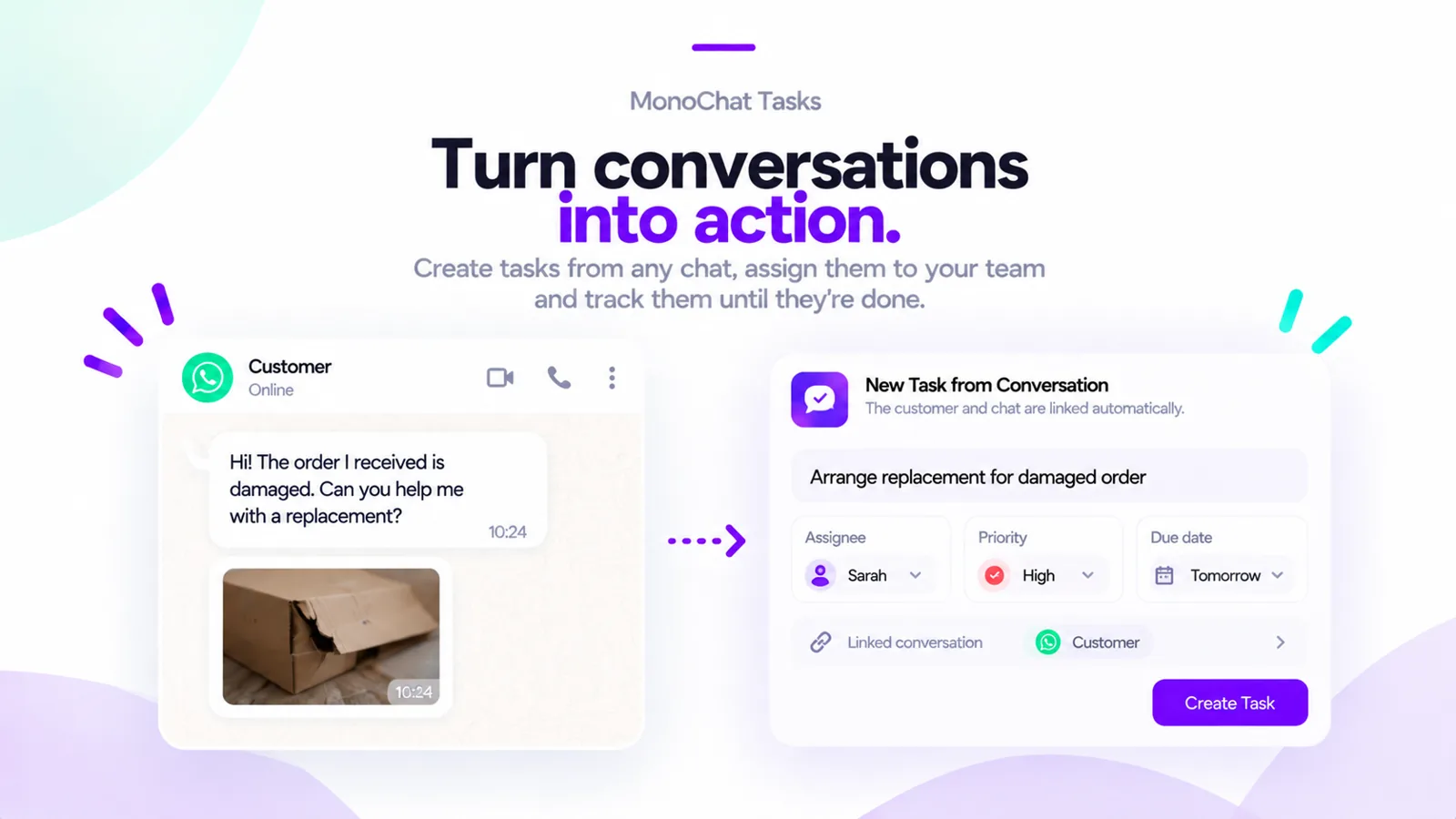
MonoChat Tasks turns customer conversations into work your team can follow. Create a task for a customer, assign it to a teammate, attach files and move it through your own task states until it is done.
The customer and the chat the task came from are always one click away.
In the UAE
For the call-back, the quotation or the viewing a customer was promised on WhatsApp.
What it does
-
Tasks from conversations
Each task is linked to the customer and the conversation it came from.
-
Your own states
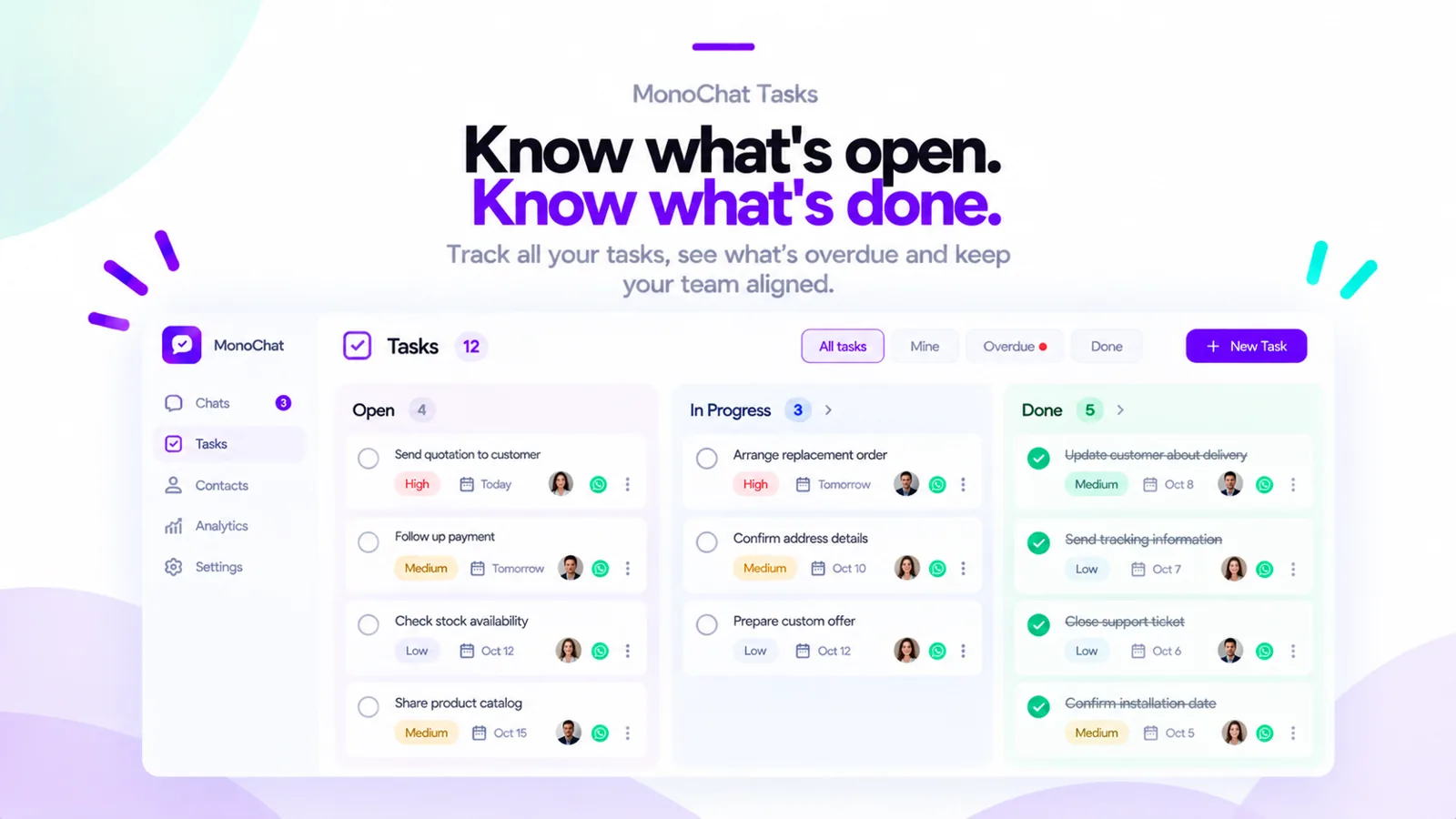
Define the task states that fit your process, such as open, in progress and done.
-
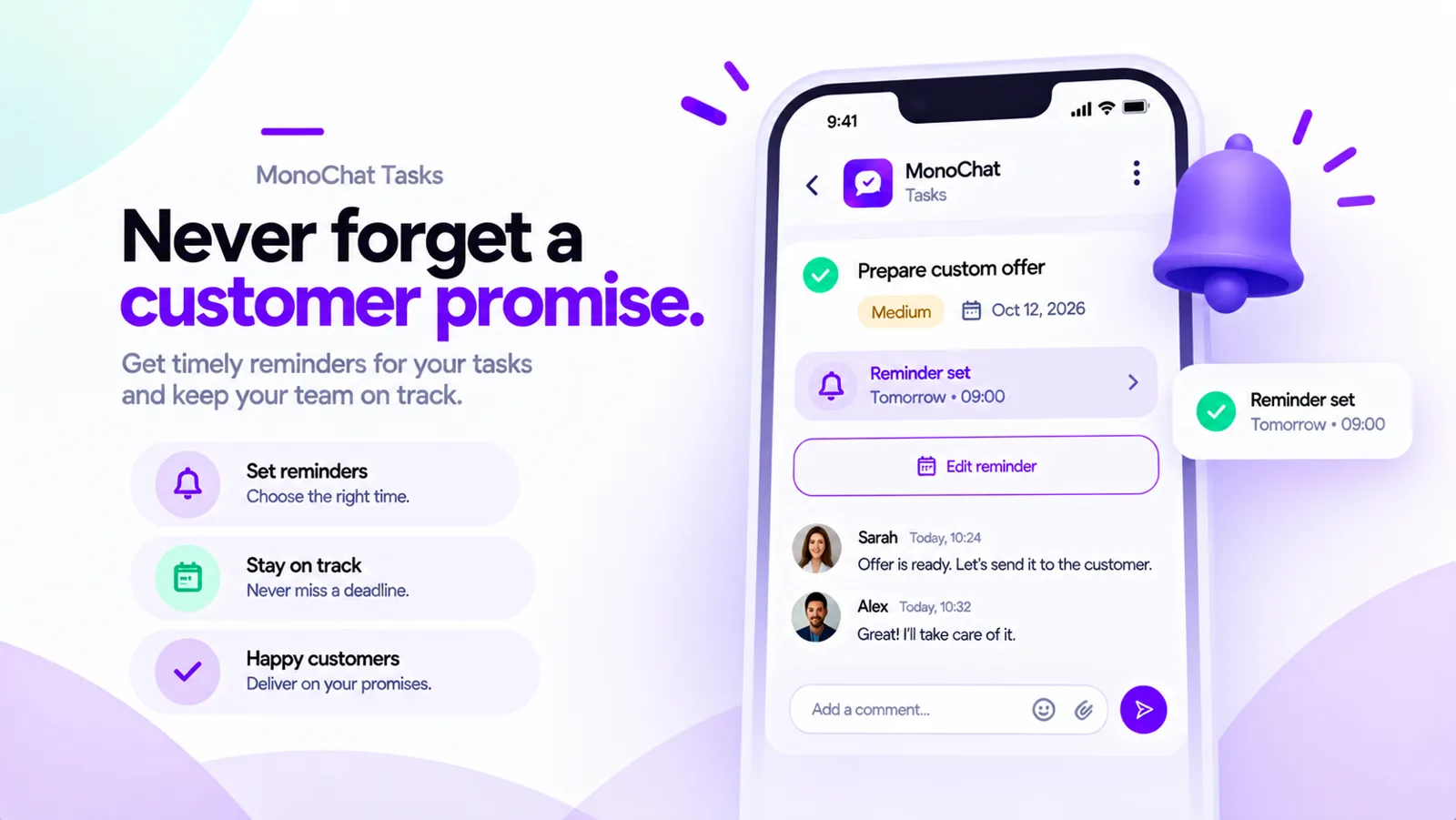
Comments and reminders
Discuss a task with your team and set reminders so no customer promise is forgotten.
Inside the app
-
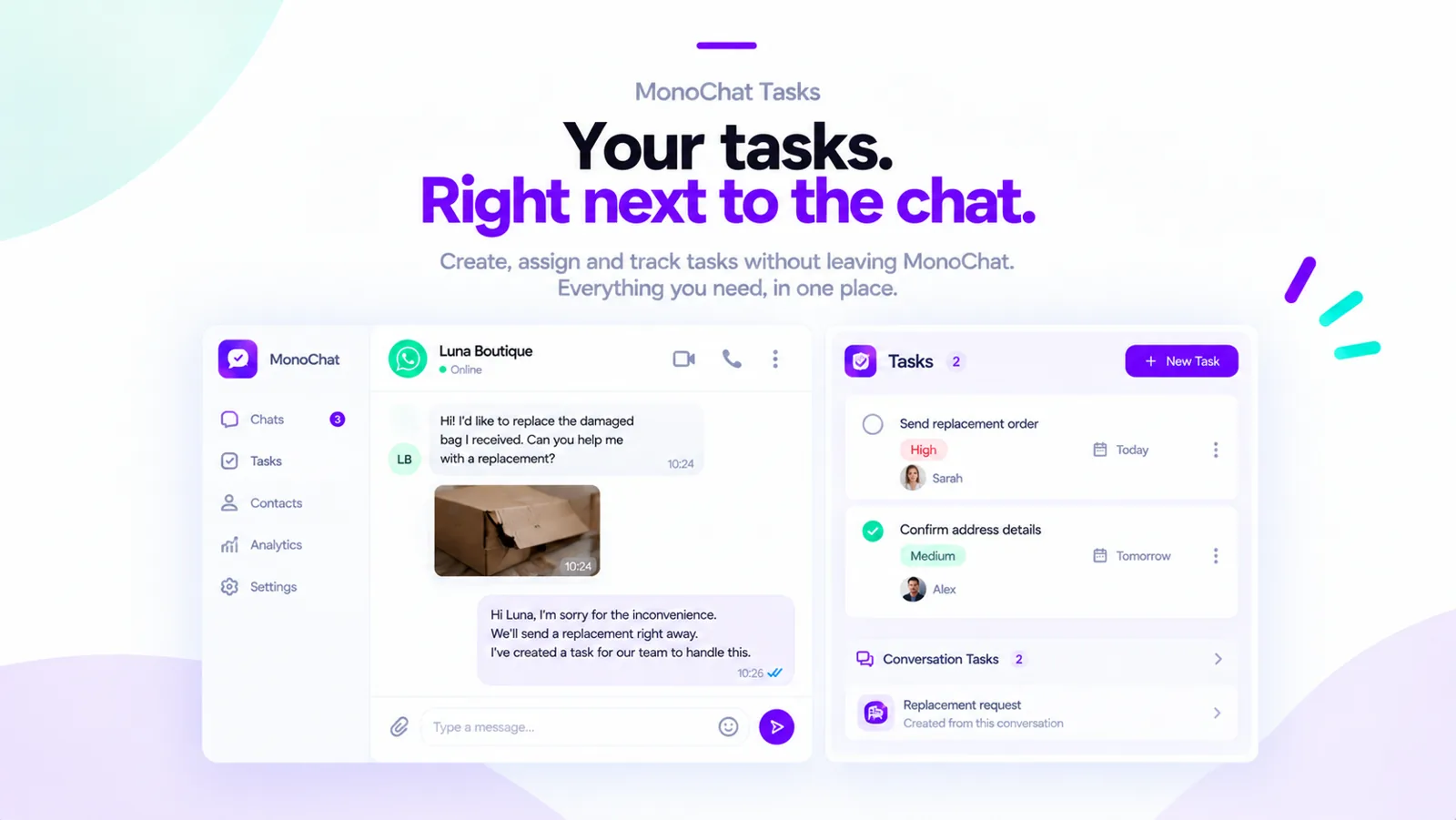
Create tasks for customers
Give each task a title, a description and files, linked to the customer and the conversation.
-
Assign to your team
Every task has an agent responsible for it.
-
Track with your own states
Change a task’s state as work moves on.
-
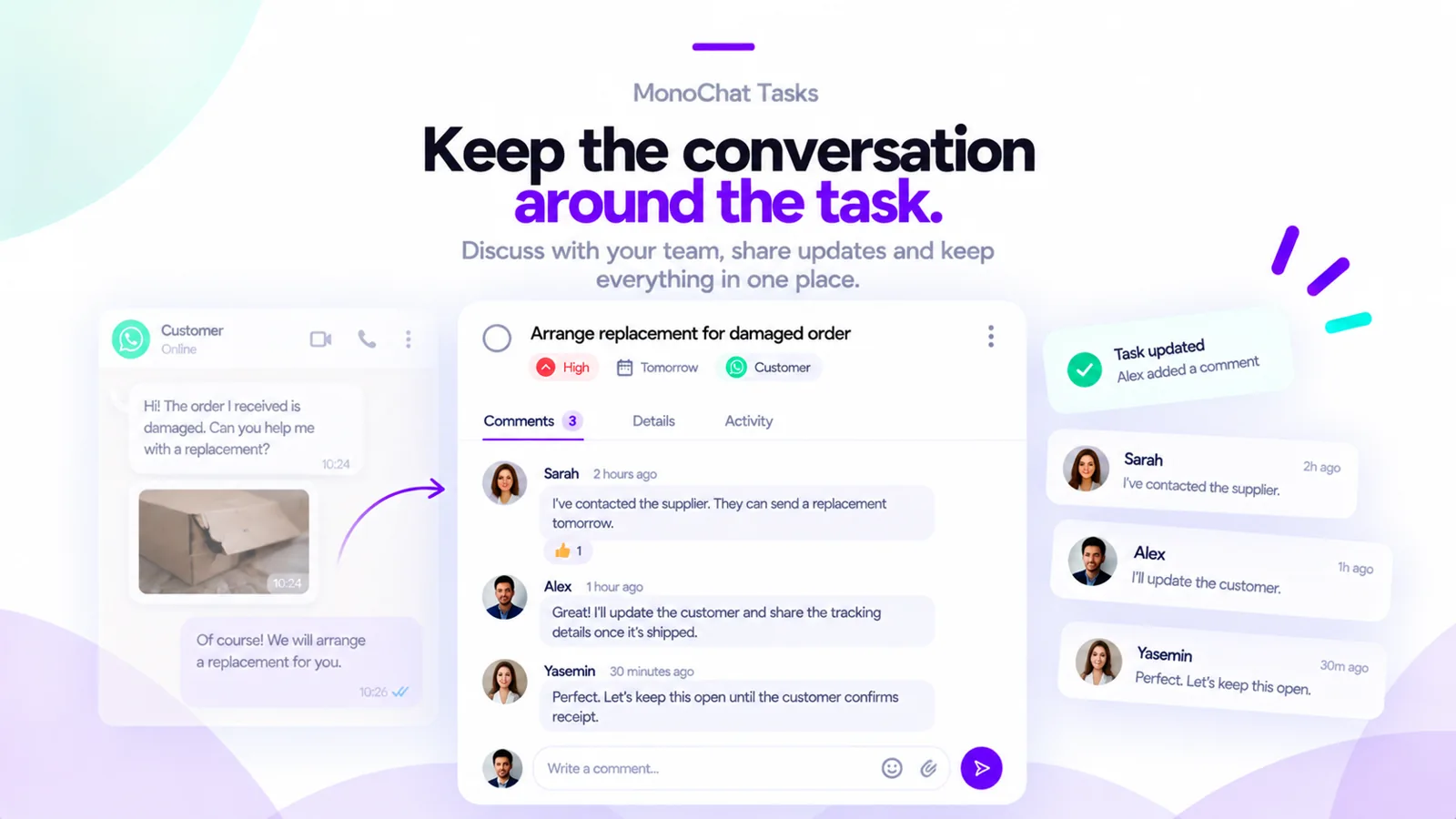
Discuss with comments
Talk about a task with your team inside MonoChat and see which comments are new.
-
Reminders
Add a reminder with a date and a note, and see upcoming and overdue reminders in one place.
-
Customer Tasks button
A button in the chat shows the current customer’s tasks and lets you add one.
Getting started
-
Install the app
Install MonoChat Tasks in your workspace.
-
Review task states
Check the task states under Settings and adjust them to your process.
-
Create your first task
Open a conversation, click Customer Tasks and create a task.
-
Follow the work
See your team’s tasks under Tasks and upcoming or overdue reminders under Reminders.
Screens
FAQ
Frequently asked questions
Short answers to the questions we hear most.
Is a task linked to the conversation?
Yes. Each task is linked to the customer and the conversation it came from, so both are one click away.
Can I use my own task states?
Yes. Define the states that fit your process under Settings, for example open, in progress and done.
Can my team discuss a task?
Yes. Comments let your team talk about a task inside MonoChat, and new comments are marked.
How do reminders work?
Add a reminder with a date and a note to a task. The Reminders screen lists upcoming and overdue reminders.
Other apps
-
Lead Ads Follow-up
Sends WhatsApp template messages to people who fill your Facebook and Instagram Lead Ads forms, at the delay you choose. -

Google Review Requests
Asks customers for a Google review after their visit, with your review link for each branch, fairly and with an easy way to stop. -

ClickUp Lead Sync
Turns leads and orders from your conversations into ClickUp tasks, and brings your team’s changes back to MonoChat. -
MonoChat Toolkit
Ready-made AI tools and flow nodes: menus, surveys, appointments, leads, coupons, branches, email, Google Sheets and more. -

MonoChat Start
Give it your website, and in two minutes an AI assistant answers your customers on WhatsApp, Instagram and your site. -

CompanyAI
An AI assistant built from your website: it learns your products, policies and FAQs, sends requests and complaints to the right department as tasks, and searches your Shopify store. -
WhatsApp Template API
Send approved WhatsApp templates from your CRM, ERP or online shop with one API call; replies arrive in your MonoChat inbox. -
Session Link
One API call returns a link to a customer’s conversation in MonoChat, creating the customer and the conversation if needed, and can assign it to an agent or workgroup. -

Ads Referral Report
See which Meta ads and posts start conversations: every chat from a click-to-WhatsApp or Instagram ad, by ad, day and channel.
First month of Growth on us
Bring every customer conversation into one place.
Connect your first channel in minutes. Basic is free for 1,000 outgoing messages a month.
One code per business • 30 days to redeem • No card needed